


Routing
- If
- A ticket arrives from WhatsApp Business and the subject contains "delivery".
- Then
- The Logistics team receives the ticket with high priority.
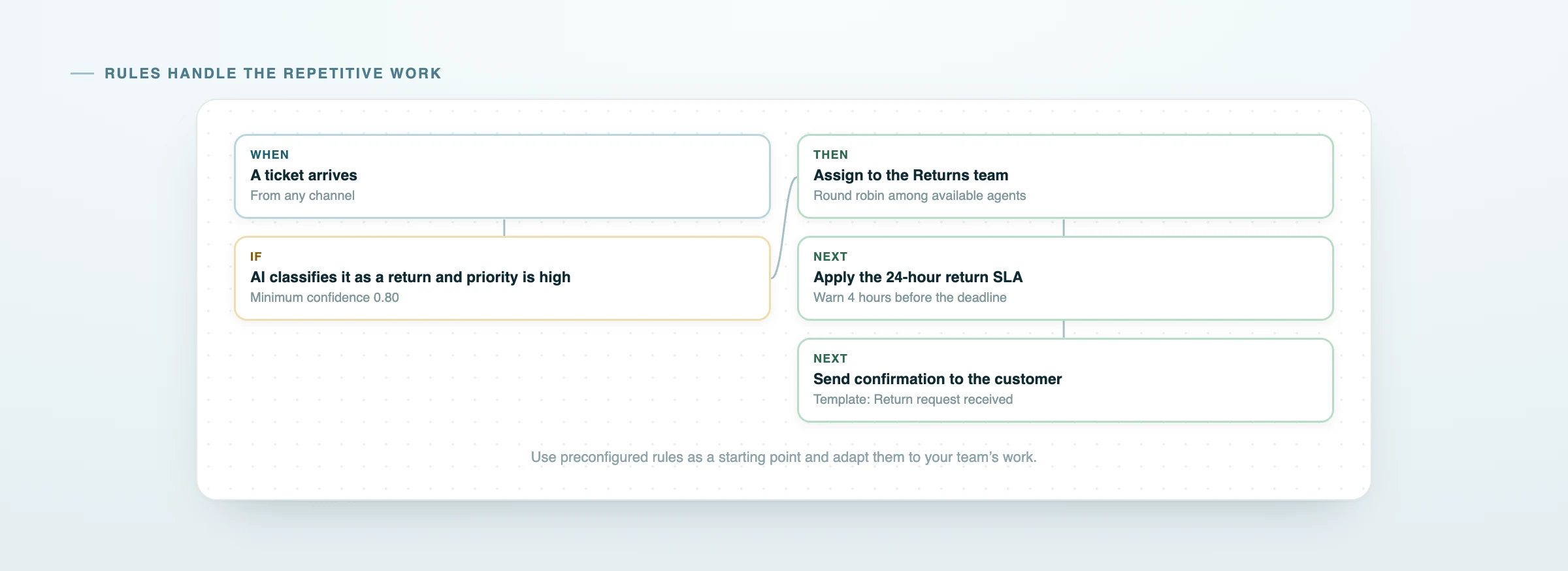
Assign tickets, update priorities, send notifications and connect your own systems with visual rules built on customer service events.

What changes
Automate assignments, priorities, updates and communications so your team can focus on resolution.
Channel, content, customer, priority and custom fields decide who picks the ticket up, before anyone opens the queue.
Priorities, tags, assignment, acknowledgement replies and alerts to the team lead are applied the same way every time, busy days included.
A call to your back office, your CRM or whatever the team already uses fires the moment the ticket changes.
Evaluate specific rules first and use the general rule as a fallback.
Let multiple rules add tags, watchers and notifications to the same ticket.
Pause a rule and turn it back on when needed. Its settings and history remain available.
Ready-to-use examples
Route tickets to the right team, handle urgent cases and update your systems without chasing every step.
How it works
Choose the event, define the conditions and set the actions. No code required.
Pick the event that starts the rule: a ticket being created, or one specific change to a ticket already open.
Combine conditions on ticket data, contact data, the customer organisation and the AI classification.
Run one action or several, automatically, in the order you put them in.
Actions
Run one action or a complete sequence. Use ticket data to personalise emails, replies and notes automatically.
Assign tickets, update priorities, send notifications and connect your own systems with visual rules built on customer service events.
The ticket lands in the queue of the agent you name.
It goes to the group rather than one individual, and whoever is free picks it up.
Named person, round robin, least busy agent or declared skill, for when you would rather not decide case by case.
Status, priority, due date, language, topic and your own custom fields.
To find and group tickets later without adding a new field.
For the people who need to know what is happening without owning the ticket.
Internal by default: it stays on the ticket and the customer never sees it.
To an agent, a team or an address you type in, with a formatted subject and body.
A reply to the customer on the channel they used, for acknowledgements that do not need an agent.
Replace the title, or add a prefix or suffix so it stands out in the queue.
GET, POST, PUT, PATCH or DELETE to your endpoint, with the headers, authentication and body you define.
Keep spam and unwanted messages out of your team’s daily work.
Run a rule when a ticket is created, a field changes, a customer replies or a deadline approaches.
Works across every connected channel: email on your own domain, Microsoft 365 over OAuth, Google Workspace via forwarding, Instagram, Messenger, WhatsApp Business, web chat and web forms. This is where routing, priority and tags get decided, before anyone opens the queue.
You pick the events that matter, one or several. On anything else the rule is not evaluated.
Combine ticket, customer and organisation data to apply different priorities, SLAs and assignments when needed.
Status, priority, inbound channel, subject, topic, tags, assignee, due date, created and updated dates, first reply, last customer reply.
Name, email, phone, language, target group and tags of the person who wrote in.
Name and domain of the organisation the contact belongs to, so you can treat one account differently from another without tagging by hand.
Use intent, issue type, suggested priority and sentiment in rule conditions. Set a confidence threshold to decide when to apply the AI classification.
The fields you added to the ticket behave like any other in conditions, with the values from your own list.
Is and is not, contains and does not contain, empty and not empty, greater and less than, hours elapsed since a date. Text comparison ignores case.
Define the execution order and choose whether to stop at the first match or apply every valid rule.
The routing setting. The list is read top down, the first rule whose conditions are true acts, and the scan stops. Specific cases at the top, the catch-all at the bottom.
The setting for effects that add up: tags, watchers, notifications. Each rule checks its own conditions and does not take the turn away from the others.
The two modes do not compete: a rule set to "run every match" still acts when another one stopped at the first match. That keeps cumulative effects independent of routing.
A rule that is switched off is not evaluated and does not take a turn: the order of the others stays exactly as you set it.
Review the ticket, conditions, actions and errors in a complete and understandable log.
For each rule: when it fired, on which ticket, which conditions came back true and which actions ran.
Success, partial or failed. Partial means one action did not complete and the others did, with the error message sitting next to the action that stopped.
An action that changes a field can set off another rule: the log shows the whole sequence, in the order it happened.
URL, method, the body sent, the response code and the response received, so you verify the integration here rather than by trial and error.
Total and active rules, successful, partial and failed runs, and which rule did the most work.
One toggle stops the rule and leaves its configuration and history intact. It is the right way to isolate a behaviour and switch it back on later.
Copy a rule that works, change the one value that needs changing, switch it on. Per-channel and per-team variants get built this way.
Start workflows with tasks, approvals and deadlines to coordinate processes that involve several people and steps.
Run actions in response to an event, such as assigning a ticket, updating a field or sending a notification.
Handles procedures with several steps: tasks assigned to people, approvals, waits and branches that run in parallel. A case stays open until the path is finished.
A rule can start a Flow and coordinate subsequent tasks. Basic nodes are included in every plan; advanced nodes are available with Enterprise.
Explore Uppo FlowWhat changes from one plan to the next, in one place.
Configuration, assignments and connecting automation to Uppo Flow.
Assign the ticket to a person, a team or by a rule of thumb; update status, priority, due date, language, topic and custom fields; add tags, watchers and internal notes; send an email or a reply to the customer; change the subject; call one of your own systems; mark as spam, block or bin. A rule combines as many of these as you need, in the order you choose.
You pick the event, usually ticket creation, and the conditions that single out the case: channel, subject, customer, AI classification, custom fields. Then you choose the action: named person, team, round robin, least busy agent or declared skill. The ticket lands in the right queue before anyone opens it.
The moment the event you chose happens: a ticket being created, or one specific change to an existing ticket such as a status move, an assignment or a customer reply. Conditions combine with AND, with OR or in blocks, and the fields come from the ticket, the contact, the customer organisation, the AI classification and your own custom fields.
It depends how you set each one. A rule marked "stop at the first match" halts the scan of rules with that same setting; one marked "run every match" acts anyway, because the two modes are two independent passes. Evaluation order is list order, and you change it by dragging.
Switch it on against a narrow condition, read the execution log, then widen it once the behaviour is what you wanted. You can switch it off with a toggle at any point, and its configuration and history stay where they are.
Yes. An action calls your endpoint with the method, headers, authentication and body you define, and the log keeps the URL, the body sent and the response received. For deeper integrations there are the Uppo REST API and the available connectors, from GitHub to Stripe.
Automations react to an event and update the ticket. Uppo Flow handles procedures with several steps: assigned tasks, approvals, waits and parallel branches. A Flow starts from an automation rule, so the two work together. Base nodes are included on every plan and advanced nodes with Enterprise.
10 on Starter, 20 on Growth, 100 on Scale; Enterprise capacity is scalable. The rules shipped with the account sit outside that count, and the available actions are the same on every plan.
Channels, tickets, SLAs, knowledge base and portals, on one page.
Go to the features overviewSSO, permissions, IP restrictions, audit trail and data hosted in the European Union.
Read how we protect your dataStart with the rules included in your account and build your own without writing code.
 Assign to a person
