In this article
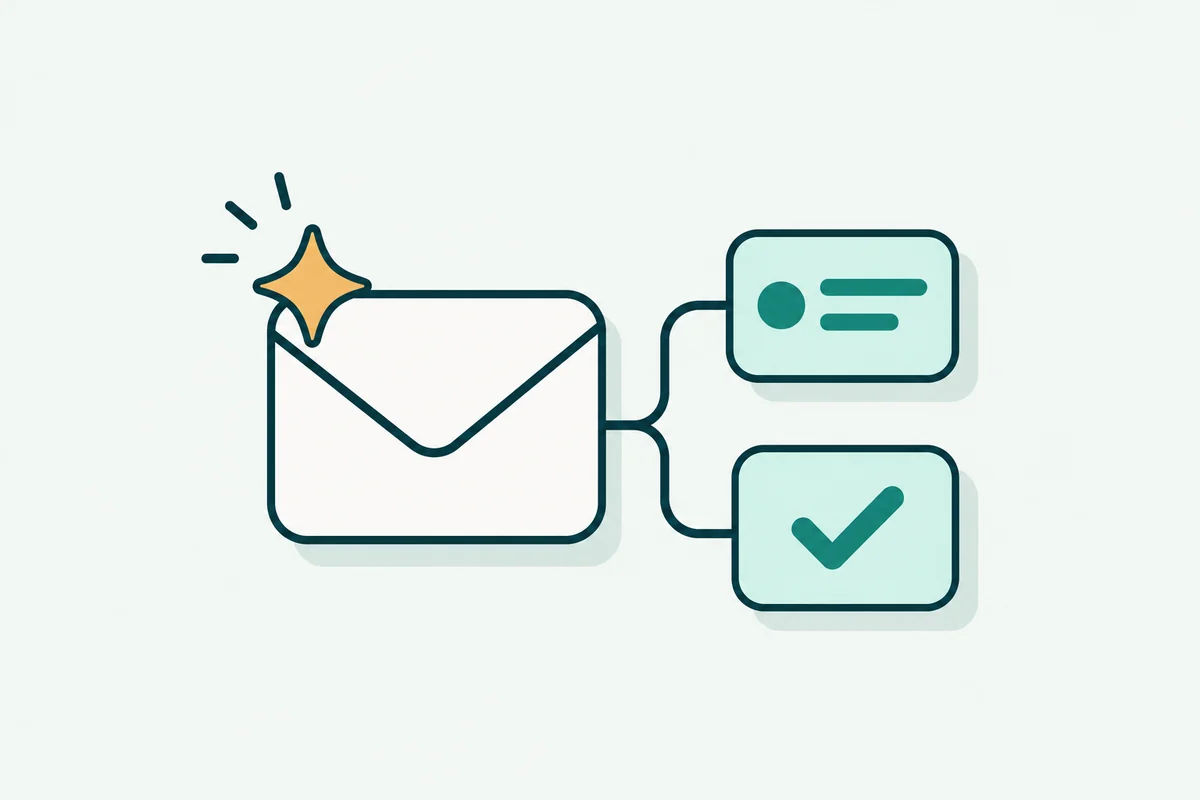
At 9:12, an email arrives in support. Elena replies that she will check a detail with the accounts team. Meanwhile Marco sees the message and sends different instructions. By 10, the customer has received two different replies and does not know whether to wait or try the proposed solution.
It gives you a useful test: can the team see who owns the request and what has already been sent? Email volume matters less than being able to reconstruct the work without asking every colleague.
First check what the mailbox already supports
A shared mailbox can be enough when responsibilities are clear and requests take only a few exchanges. Several people reading the same address is not, on its own, a reason to change tools.
Email products have collaboration features too. Microsoft documents access and sending through a shared mailbox in Outlook. Google Groups supports taking and assigning conversations through a Collaborative Inbox, subject to the relevant permissions. Sources checked on 26 November 2026; confirm what is actually enabled in your account.
Start with three questions: who will reply, what are they waiting for and when will they update the customer? If the answers are already visible, use those controls. If they live in separate chats, notes or someone’s memory, try keeping them with the request.
An owner does not have to do everything
To distinguish the ticket’s role from the mailbox, start with what a helpdesk does. The owner can ask the accounts team to investigate while remaining responsible for the customer update. In our example, Elena might leave an internal note: “The accounts team is checking the invoice. I’ll update the customer by 4pm, even if the investigation is still open.”
That note helps the next colleague understand what happens next. It is not yet a reply to send externally. Before sending, check recipients, attachments and text: an internal discussion must not reach the customer conversation.
Ticket management provides a place to follow ownership, status and history. For a software vendor’s technical support process, use the SaaS support guide. Here we focus on receiving and answering email.
Test the full round trip before moving the mailbox
Use synthetic messages and check one path at a time:
- Send an email from an external address to the support mailbox.
- Check that it reaches the intended queue and assign an owner.
- Reply from the ticket and check the sender, recipients and harmless test attachment in an external mailbox.
- From the external mailbox, reply to that email and check that it continues on the original ticket.
- Repeat with an alias the team actually uses, then with another colleague taking over the request.
Look for one recognisable conversation, without an unexpected new ticket or the wrong sender address. Seeing an email in the queue is not enough: test the customer’s reply too. If the test fails, correct the configuration before extending the change.
Forwarding and connecting a mailbox are different paths
Uppo’s multichannel helpdesk page distinguishes a Microsoft 365/Outlook connection from Google Workspace/Gmail forwarding. With Gmail forwarding, replies come from the verified domain configured in Uppo, not from Gmail. With Microsoft 365, replies come from the connected mailbox.
Avoid keeping two sending paths active without deciding which one the team should use. A reply from an email client and another from the ticket can duplicate customer communication even when incoming mail is configured correctly. Define where work happens and check the address the customer sees.
Add rules after clarifying the work
A rule can assign recognisable requests to a department. Start with a simple case and check the result before applying it to all mail. The automation guide helps you choose conditions and actions.
To decide whether the change helps, compare a few requests handled before and after using the same criteria: duplicate replies, tickets without an owner and conversations awaiting an update. Do not attribute an improvement to the tool without reading the cases. For delays before a reply, use the response-time guide. Here, first check that the sender, recipients and ticket continuity remain correct throughout the email round trip.
Want to see it on your own case? Bring a request to a demo.
Share